
Duplicate Song Finder
Formerly Audio Dedupe - Find and Remove Duplicate Songs & Similar Audio Files
 About
About Features
 Download
 Register (buy)
 Screen Shots
 What's New?
 FAQ
FAQ Awards
 Tutorials


MindGems Duplicate Song Finder uses advanced audio fingerprinting to find and remove duplicate and similar songs from your music library - even when they are stored in different file formats or have no ID3 tags. Unlike basic duplicate file finders that compare filenames or metadata, our duplicate musing finder listens to the actual audio content and identifies matching tracks by sound. Set the duplicate mp3 finder similarity level to 100% to find exact copies, or lower it to catch alternate versions, remixes, and different encodes of the same track.
Our duplicate audio finder handles collections of any size. A built-in fingerprint cache stores previously analyzed files so that rescans are extremely fast - no waiting when you add new songs to your library. With multi-threaded scanning and support for millions of files, MindGems Duplicate Song Finder is one of the few tools built for serious music collectors rather than casual users.
Seven scan modes cover every duplicate scenario: Audio Compare for true content-based matching, 100% Identical Files for exact copies, File Size for quick scans, and ID3 Title, Artist, Album, and Genre modes for metadata-based organization. An integrated audio player lets you compare matched tracks side by side before removing anything. This duplicate audio finder supports MP3, FLAC, AAC, WAV, OGG, WMA, AIFF, AC3, WavPack, Musepack, APE, and TTA.
Delete duplicate songs, save valuable disk space and organize audio collections.
Our tools are trusted by governments, space agencies, international banks, libraries, game studios, laboratories, photographers, DJs, and more than 50 million users worldwide.
-


-
 EV
EV
Certified - Top-Rated

-

Key Features
Duplicate Song Finder is a duplicate MP3 finder and duplicate music finder for Windows that identifies and removes duplicate and similar songs from any folder or drive, including subfolders, freeing up storage space and keeping your music library clean and organized.
- Advanced audio fingerprinting - compares actual audio content rather than filenames or tags, working across MP3, FLAC, WAV, M4A, and other common audio formats. Set the similarity threshold in percentage to find exact copies, alternate versions, or remixes.
- Similar ID3 tag detection - finds duplicate and similar Titles, Albums, and Artists even when words are reordered or slightly misspelled.
- Exact duplicate detection - fast binary comparison for finding byte-for-byte identical music files.
- Automatic quality-based selection - marks lower-quality copies for removal based on bitrate, file size, song length, or file date - always keeping the best version.
- Integrated audio player - continuous playback while switching between duplicate tracks makes it easy to compare audio quality before deleting anything.
- Manual selection tools - mark files manually or adjust the automatic selection before taking any action.
- Flexible duplicate removal - move to Recycle Bin, copy to a custom folder, or delete permanently.
- ID3 tag editor - copy tags from one song to another or edit them directly to fix errors and fill in missing metadata.
- Advanced filtering - include or exclude files and folders based on name, size, date, format, and other properties.
- Multi-threaded scanning - compares multiple files simultaneously for fast results even on very large collections.
- Scales to any library size - capable of deduplicating millions of songs across large MP3 or FLAC collections, limited only by available system resources.
- Completely offline - all scanning is done locally on your device. No files or data are ever uploaded or transmitted.
- 25 years of active development - continuously improved since 2001 with native support for both 64-bit and 32-bit Windows.
- Lifetime license - one-time purchase with no subscription fees.
Thousands of users consider MindGems Duplicate Song Finder the best duplicate song finders available for Windows.
How to Find Duplicate Songs
Find duplicate audio files using audio fingerprinting:
- Add the folders or drives you want to scan to the folders list.
- Select the Audio Compare scan mode and set the similarity level.
- Click Scan, review the results, then delete duplicate music files, move them, or copy them elsewhere.
Audio Compare mode analyzes the actual sound content of each file rather than relying on tags or filenames. This makes it possible to detect duplicate songs across different formats, bitrates, and encoding quality levels - even when metadata is missing or incorrect. It's the kind of detection a basic duplicate music finder simply can't match. See the full tutorial on using this duplicate audio finder to find duplicate songs.
Find songs with similar or duplicate ID3 Title tags:
- Add your audio files or folders using the Add Folder button.
- Select ID3 Title as the search criteria.
- Click Scan, then review and manage the grouped results.
This mode goes beyond exact tag matching - it identifies similar titles even when words are reordered or slightly misspelled, making it useful for libraries with inconsistent or manually entered metadata.
Group and organize songs by album using ID3 Album tags:
- Add your audio files or folders using the Add Folder button.
- Select ID3 Album as the search criteria.
- Click Scan, then move grouped songs into separate album folders.
This mode is not just for removing duplicates - it lets you use Duplicate Song Finder as a music organizer, automatically grouping tracks by album so you can move them into a clean folder structure.
Group and organize songs by artist using ID3 Artist tags:
- Add your music files using the Add Folder option.
- Select ID3 Artist as the search criteria.
- Click Scan, then relocate grouped songs into dedicated artist folders.
Use this mode to build a clean artist and album folder structure - create a folder for each artist and move their albums into subfolders underneath. Combined with the Album mode, this gives you a fully organized library without manual sorting.
These are just a few of the scan modes available in Duplicate Song Finder. Beyond working as a duplicate song remover that frees up disk space, the tool doubles as a music organizer - grouping, moving, and structuring your library the way you want it.
Supported Audio Formats
Duplicate Song Finder searches for duplicate and similar audio files in the following formats:
- AAC Files (*.aac; *.mp4, *.m4a) - iTunes, iPod, iPhone Audio Files including Apple Lossless audio
- AC3 Files (*.ac3)
- Audio IFF Files (*.aif; *.aiff)
- FLAC Files (*.flac)
- MPEG Audio Files (*.mp3; *.mp2; *.mp1; *.mpa)
- Musepack Files (*.mpc)
- OGG Files (*.ogg)
- WAVE Files (*.wav)
- WavPack Files (*.wv)
- Windows Media Audio Files (*.wma)
- Monkey's Audio Files (*.ape)
- True Audio Files (*.tta)
In Audio Compare mode, files must be at least 30 seconds long to provide sufficient data for audio fingerprinting. Files shorter than 30 seconds will not be processed.
Duplicate Song Scan Modes

Duplicate Song Finder provides seven scan modes for finding duplicate and similar songs: Audio Compare, 100% Identical Files, File Size, ID3 Title, ID3 Artist, ID3 Album, and ID3 Genre.
Audio Compare - Find Similar Songs
Finds similar songs using advanced audio fingerprinting and true audio content analysis. Detects duplicate tracks even when they have no ID3 tags, different filenames, or are stored in different audio formats - because it analyzes the sound itself rather than file properties. See also: Duplicate Image Finder, Duplicate File Finder, and Which Duplicate Finder To Choose?
100% Identical Files - Find Exact Duplicate Songs
Finds exact copies of a song even when stored under a different filename. This mode compares actual file data rather than size, name, or checksum. Tools that rely on CRC or MD5 checksums can incorrectly flag different files as duplicates - Duplicate Song Finder does not have this problem.
File Size - Find Songs with Equal File Sizes
The fastest scan mode - identifies files that share the same size and optionally the same extension. When filtering by file extension, the chance of two unrelated audio files having identical sizes is extremely low, making this a reliable quick scan option.
ID3 Title - Find Similar Songs by Title
Finds songs with similar or identical titles using true similarity analysis rather than simple pattern matching. For example "Voodoo People" and "Voodoo People (rmx)" will be matched as similar depending on the specified similarity level. Set similarity to 100% to find only exact title matches.
ID3 Artist - Find Songs from the Same Artist
Groups songs by artist name. Setting similarity below 100% ensures that tracks are still matched even when the artist name is entered slightly differently across files - for example "David Bowie" vs "D. Bowie".
ID3 Album - Find Songs from the Same Album
Groups all songs from the same album together. As with the Artist mode, adjusting the similarity percentage ensures that tracks are matched even when the album name is typed differently across files.
ID3 Genre - Find Songs from the Same Genre
Groups all songs that share the same or similar genre tag. Useful for organizing your library by genre or identifying tracks with missing, incorrect, or inconsistently entered genre information. As with the other ID3 modes, adjusting the similarity percentage ensures tracks are matched even when the genre is typed differently across files.
Tip: The ID3 Title, ID3 Artist, ID3 Album, and ID3 Genre modes can be combined and run simultaneously in a single scan - each with its own similarity threshold. This lets you find and organize duplicate songs across multiple metadata fields in one pass.
Compare Folders for Duplicate Songs
In addition to scanning your entire music library, Duplicate Song Finder lets you compare two or more folders for duplicate songs - useful when consolidating libraries from different drives, backups, or devices.
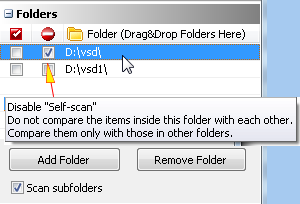
Set a folder as a source folder to protect its contents during a scan. The Exclude from Self-Scan option ensures files inside that folder are only compared against files in other folders - not against each other. This is useful when you want to keep one folder intact and find duplicates relative to it. Learn more about folder comparison.
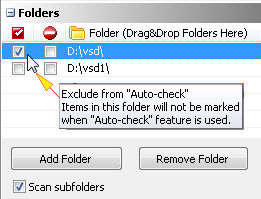
The Exclude from Auto-Check option can be used on its own or combined with Exclude from Self-Scan. When enabled, files inside that folder will not be automatically marked for deletion when using the auto-check feature - giving you full control over which copies are kept. Learn more about auto-check exclusions.
Duplicate Song Finder Testimonials
PCWorld, via Reuters

Keeping an ear tuned to a fat collection of music files and an eye on your PC's ever-diminishing hard drive space? Then give Audio Dedupe a try. It uses a sophisticated set of tools to find duplicate music files, even if they're in different file formats. Audio Dedupe doesn't merely compare file names or file sizes to find duplicates and similar files. Instead, it compares the contents of the audio files themselves to see whether they are duplicates or similar. You can even control the amount of similarity you wish to flag, such as 70 percent.
Read full review on reuters.com / pcworld.com
Editorial - uptodown.com
Audio Dedupe - Duplicate Song Finder is a robust duplicate mp3 finder designed for efficient identification and removal of duplicate audio files. The tool employs advanced algorithms to recognize duplicate songs, even when stored in various file formats without ID3 tags. It is a powerful and versatile tool for managing and organizing audio collections by removing duplicate songs and optimizing valuable disk space.
Read full review on uptodown.com
Editors’ Review - cnet.com
Audio Dedupe intelligently finds and removes duplicate audio files, even across different formats and without ID3 tags. It offers precise control and ensures a cleaner music library.
DJ Boom - Professional DJ
I manage a large DJ library with thousands of tracks in multiple formats and I have tried pretty much every duplicate music finder out there. Duplicate Song Finder is the only one that actually listens to the audio rather than just comparing file names or tags. It caught remixes and alternate versions that everything else missed. The continuous playback preview is a genuine time saver - I can compare two versions of a track without stopping the music. Nothing else comes close for a working DJ.
Alex Thompson - Audio Enthusiast
I have around 80,000 tracks collected over 20 years and my library was a mess - multiple copies in different formats, files with missing tags, duplicates from old backups. Duplicate Song Finder scanned the whole thing faster than I expected and found duplicates I had no idea were there, including tracks stored as both FLAC and MP3. The project save feature is essential at that scale - I could work through the results over several sessions without losing progress. Finally have a clean library.
Jordan Reynolds - Audiophile
What sold me was the automatic quality-based selection. I did not want to manually decide which copy to keep for thousands of duplicates - Duplicate Song Finder just marks the lower quality version and keeps the best one. It also flagged several corrupted files I did not know I had. My library went from bloated and disorganized to clean and properly tagged in a single afternoon. For anyone with a serious music collection this is the tool to use.
Who Is Duplicate Song Finder For?
DJs
Keep your DJ music library clean before importing tracks into Rekordbox, Serato, VirtualDJ, Traktor, or other DJ software. MindGems Duplicate Song Finder helps you find duplicate songs, remove repeating tracks, and identify similar audio files even when they have different filenames, formats, or missing ID3 tags.
Music Collectors
Organize large music collections containing MP3, FLAC, WAV, AAC, OGG, M4A, and other popular audio formats. This advanced duplicate music finder detects identical recordings stored in different formats, bitrates, or folders, making it easy to remove duplicate music while preserving the best-quality copy.
Audiophiles
Unlike ordinary duplicate file finders, MindGems Duplicate Song Finder performs true audio comparison using acoustic fingerprinting and advanced audio similarity detection. It compares the actual sound rather than filenames or metadata, making it an exceptionally accurate duplicate audio finder.
Music Producers & Audio Engineers
Quickly locate duplicate recordings, alternate mixes, rendered versions, and similar audio files across large projects. Advanced audio content analysis simplifies music deduplication while helping preserve important recordings.
Radio Stations, Broadcasters & Media Companies
Manage extensive music and production libraries containing songs, jingles, commercials, podcasts, and sound effects. Incremental scanning and fingerprint caching make Duplicate Song Finder ideal for maintaining very large audio libraries.
Content Creators & Podcasters
Remove duplicate voice recordings, interviews, background music, and sound effects. Keep your production assets organized using a professional duplicate audio finder built for accuracy and performance.
Home Users
If your music library has grown through downloads, backups, external drives, or multiple computers, Duplicate Song Finder works as both a music library organizer and a music duplicate remover. Easily remove duplicate MP3s, delete repeated songs, clean your music collection, and free up valuable disk space.
Find Duplicate Songs from the Command Line
Available in the Corporate Version only.
Usage:
AudioDedupe.exe -src_list <srclistfilename> -target_list <targetfilename> -log <logfilename> -s <similarity> -db <dbfilename> [-cachenames]
Parameters:
- -src_list <srclistfilename> - a plain text file containing the audio files you want to compare against the target list.
- -target_list <targetfilename> - a plain text file containing the audio files to compare against the source list. If omitted, only the source list files are scanned against each other.
- -log <logfilename> - full path to the output log file where comparison results will be saved. Example: c:\log.txt
- -s <similarity> - similarity threshold in percent. Example: -s 70
- -db <dbfilename> - path to the cache file to use or create. Cache files use the .ADCF extension (Audio Dedupe Cache File).
- -cachenames - stores file names in the cache instead of file checksums.
Cache files store audio fingerprint data gathered during the first scanning pass. If you scan the same files regularly, specifying a cache file significantly speeds up subsequent scans. The cache file does not need to exist beforehand - the program will create it automatically on first run and reuse it on subsequent runs.
If any parameter value contains spaces, enclose it in double quotes.
Example:
AudioDedupe.exe -src_list "c:\src.txt" -target_list "c:\target.txt" -log "c:\log.txt" -s 70 -db "c:\db.adcf"
This finds all audio files with similarity >= 70% and saves their file names and similarity scores to c:\log.txt.
Sample src.txt / target.txt:
C:\My Documents\MP3\Track (3).mp3
C:\My Documents\MP3\Track (3).mpc
C:\My Documents\MP3\Track (4).mp3
C:\My Documents\MP3\Track (4).ogg
C:\My Documents\MP3\Track (5).mp3
C:\My Documents\MP3\Track (6).mp3
C:\My Documents\MP3\Track (7).mp3
Sample log.txt output:
* DUPLICATES OF * : C:\My Documents\MP3\Track (3).mp3
*** DUPLICATE 1 (SIMILARITY 98) *** : C:\My Documents\MP3\Track (3).mpc
* DUPLICATES OF * : C:\My Documents\MP3\Track (4).mp3
*** DUPLICATE 1 (SIMILARITY 95) *** : C:\My Documents\MP3\Track (4).ogg
Duplicate Song Finder System Requirements
- Operating system: Windows 11 / Windows 10 / Windows 8.1 / Windows 8 / Windows 7 / Windows Server 2008 and newer
- CPU: Any modern processor - Intel, AMD, or ARM64
- 4 GB RAM recommended (2 GB minimum)
- 50 MB free hard disk space
- Audio output device with installed drivers